Tutorial
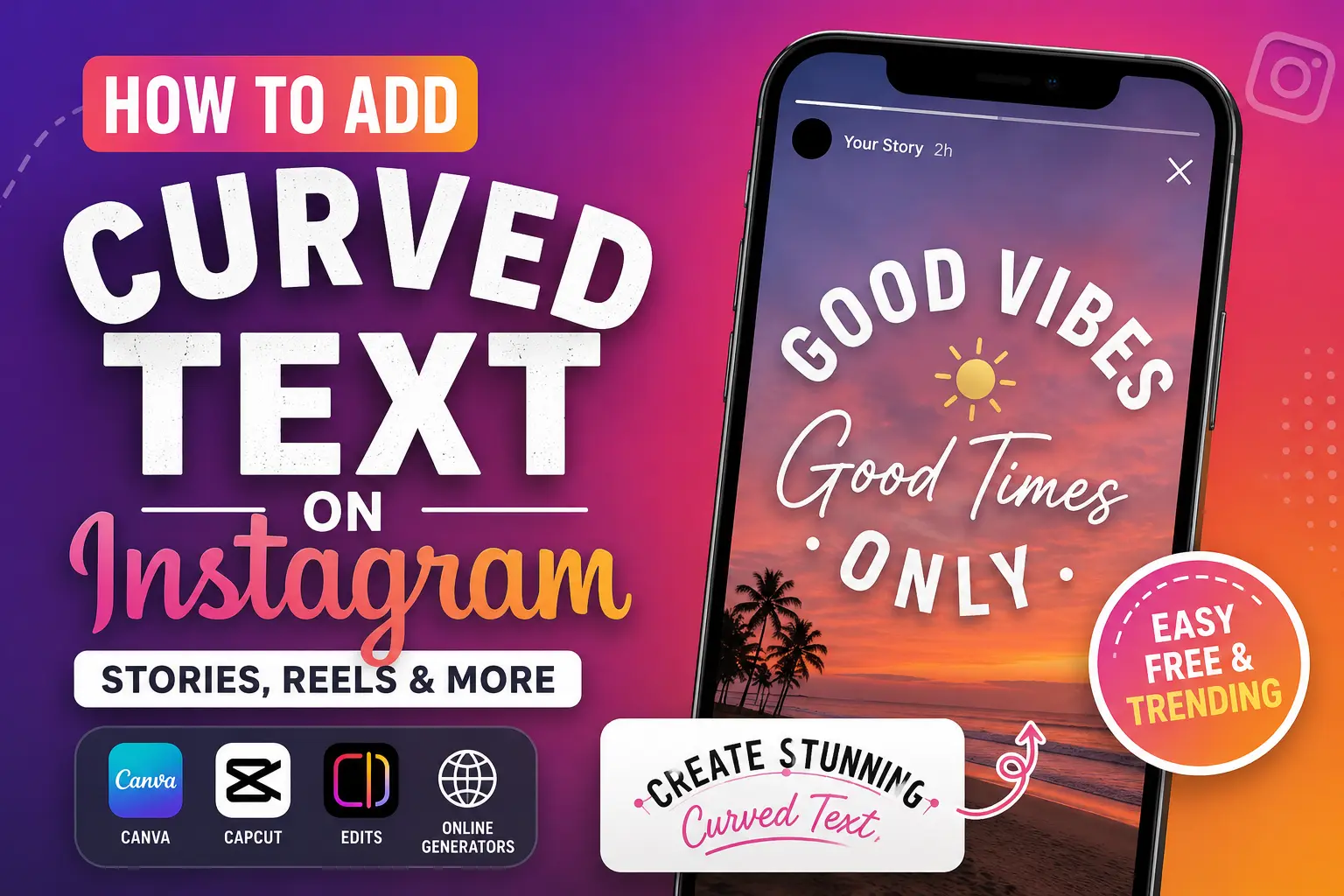
How to Curve Text on Instagram Story: 3 Easy Methods for iPhone & Android
Updated June 20, 2026
If you have seen curved captions, arched titles, or bubbly fisheye words on Instagram Stories, you have probably noticed the same problem everyone runs into: the regular Instagram Story editor is still very limited for text shaping.
That means most creators use a simple workaround. They build the text in Canva, CapCut, or an online curved text tool, save it, and then upload it into Instagram as a Story background, sticker-style overlay, or Reel cover. If you also want the text style itself to feel more on-brand, our Instagram font generator is a useful place to start.
This guide is focused on the fastest options that actually work in 2026, plus the small design choices that make curved text look clean instead of awkward.
Quick Start Guide
Quick Answer
No, Instagram Story does not have a reliable native curve text button for most users.
The easiest way to curve text on Instagram Story is to make the text in Canva, CapCut, or an online curved text generator, export it, and then upload it to your Story or Reel cover. If you want more stylized wording before you design the asset, try our fancy text generator first.
Key Takeaways
Instagram Story still lacks a standard arc, path, or warp text control.
Canva is the easiest option for static Story graphics because its Curve effect is simple and available on mobile.
CapCut is better for video-based Stories and Reels because it lets you combine text with motion and fisheye-style distortion.
Browser-based curved text generators are useful when you want transparent PNG text you can drop onto photos later.
The same workflow works on iPhone and Android because the main apps are available on both.
Short, bold wording looks better than long sentences once text is curved.
If you want a more distinctive look, start with our Instagram font generator or fancy text generator before styling the final layout.
Export at Story size or high resolution so your curved text stays sharp after Instagram compression.
Why Instagram Doesn't Have a Curved Text Tool
Instagram keeps the built-in Story text editor intentionally lightweight. You can change font, color, spacing, animation, and alignment, but proper text-on-a-path editing is still missing. So if you want a real arch, circle, or badge-style headline, you need to make it outside Instagram first.
That sounds more complicated than it is. In practice, most creators already design story assets in other tools, especially when they want transparent overlays, highlight covers, title cards, or a specific aesthetic. Curved text is just one more export-and-upload workflow, and it pairs well with an Instagram font generator if you want more personality before you export.
Method 1: Curve Text in Canva (Best for Most Instagram Stories)
Canva is the easiest answer for this keyword because it has a built-in Curve effect and works well on both phones and desktop. If your Story is mostly a photo, quote, announcement, or cover image, this is usually the cleanest method.
Best use case: static Stories, promo slides, highlight-cover style layouts, and simple text overlays. If you want a styled caption first, test ideas in our cool font generator and then match a similar font inside Canva.
Steps:
- Open the Canva app and tap the + icon to create a new design.
- Select Instagram Story as your canvas size (1080 × 1920 px).
- Tap Text in the bottom menu and choose Add a heading.
- Type your text and pick your font.
- With the text box selected, tap Effects in the bottom toolbar.
- Scroll down and tap Curve.
- Drag the slider left or right to increase or decrease the curvature.
- When the shape looks right, adjust letter spacing and size so the text stays readable.
- Save the design to your camera roll at the highest quality available.
- Open Instagram Story and upload the image or use it as the base layer for the rest of your Story.
Tips for Canva Curved Text
- ✓Drag the slider right for an upward arc, left for a downward curve.
- ✓The free Canva plan includes the Curve effect — no Pro subscription needed.
- ✓Before designing, use our cool font generator to preview and choose a font style you love — then match it in Canva’s font library.
Method 2: Use CapCut for Curved or Fisheye Text on Video
If you want the trendy rounded, inflated, or fisheye text look seen on Reels and Story clips, CapCut is the better choice. It is not always a true path curve, but visually it creates the same bent and playful effect people search for.
This method is strongest when text needs motion, timing, or a more viral social look. For more unusual lettering ideas, our freaky font generator can help you test bold text styles before you recreate them in your editor.
Steps:
- Open CapCut and import your photo or video clip.
- Tap Text and type your message.
- Choose a bold font that keeps its shape when distorted.
- Apply a curve-like style, fisheye effect, or text distortion effect depending on the current CapCut layout.
- Resize and reposition the text so it frames the subject instead of covering it.
- Preview the clip to make sure the text is readable on a phone screen.
- Export and save the finished video or image.
- Upload it to Instagram Story or use it as a Reel cover asset.
Note
The Fisheye effect technically distorts the text rather than placing it on a true curve path — but visually, it produces the same aesthetic that’s trending right now.
Method 3: Use an Online Curved Text Generator for Transparent PNGs
If you prefer building assets in a browser, a curved text generator can be the most flexible route. These tools are useful when you want a transparent background PNG, a near-perfect circle, or more exact control over the curve than Canva gives you.
This workflow is especially good for product launches, event announcements, badge-style headings, and highlight covers. Once exported, send the PNG to your phone and place it over any Story background.
For copy-and-paste text styles outside the image itself, our fancy text generator still helps with captions, bios, and comments.
Steps:
- Open a browser-based curved text generator on your phone or desktop.
- Type your text and choose an arc, circle, or custom curve.
- Adjust font size, spacing, and color until the shape feels balanced.
- Export the text as a PNG if the tool supports transparency.
- Upload the file into Instagram Story directly or place it in Canva first with your background image.
Curved Text on iPhone vs Android: Is There a Difference?
Not in any important way. Canva, CapCut, and most browser-based generators work on both iPhone and Android, so the workflow is nearly the same.
What usually changes is only the interface: the export button may move, the Effects tab may be in a different place, and newer app versions may rename a visual effect.
So if one tutorial looks slightly different from your screen, that usually means the app UI changed, not that the method stopped working.
Comparison: Which App Should You Use?
Choose the option that best matches your workflow and content style.
| Method | Best For | Platform | Cost | Curve Quality |
|---|---|---|---|---|
| Canva | Static Stories and covers | iOS & Android | Free | Clean arc control |
| CapCut | Video Stories and Reels | iOS & Android | Free | Warp / fisheye style |
| Online curved text generator | Transparent PNG overlays | Web browser | Free | Precise arcs and circles |
| Instagram font generator | Styled wording ideas | Any device | Free | Text style inspiration |
How to Use Curved Text With Custom Fonts
The curve is only half of the look. The font you choose changes whether your Story feels playful, editorial, retro, romantic, or loud. Rounded bold fonts usually survive strong curves better than thin serif styles.
Our fancy text generator and cursive font generator are useful when you are still deciding on tone. If you want something moodier, the gothic font generator can inspire headline styles before you rebuild the final version as an image.
One practical rule: if the text is very curved, keep the wording short. Fancy styling plus a strong arc plus a long phrase usually hurts readability.
How to Add Curved Text to Instagram Reels (Not Just Stories)
Yes, the same workflow works for Reels too. In fact, many people looking for curved Story text are really trying to make better Reel covers, teaser slides, or opening title cards. A quick draft from our Instagram font generator can help you decide on wording before you open Canva or CapCut.
For Reels, keep the text bigger and shorter than you think you need. A two-to-five word curved title usually performs better than a full sentence.
Common Mistakes to Avoid
Curving Too Much
A light or medium arc is easier to read on a phone screen. If the bend is too extreme, the design starts to look gimmicky and the message becomes harder to scan.
Exporting a Low-Resolution File
If your text looks soft after upload, the asset was probably too small before Instagram compressed it again. Start with Story dimensions and export the sharpest version available.
Choosing the Wrong Font for the Shape
Very thin, condensed, or decorative fonts often break down when curved. Bold, rounded, or medium-weight fonts usually hold their shape much better.
Making the Copy Too Long
Curved text works best as a headline, not a paragraph. Trim the wording until the message is punchy and easy to understand in one glance.
Expert Tips for Better Curved Text on Instagram
Use Curved Text as the Hook, Not the Whole Layout
Put the curved text on the first focal line only, then keep the rest of the Story simple. One strong curved headline usually looks more premium than curving every text element. If the wording still feels plain, test options in our fancy text generator before building the final layout.
Pair It With a Clean Background
Curved text is easiest to read over blurred photos, solid colors, or lightly textured backgrounds. Busy imagery competes with the shape and weakens the effect.
Build Badge-Style Layouts With Opposite Curves
One line arched upward and another line curved downward creates a classic badge, logo, or event-announcement composition that works especially well for Story covers.
Test Font Ideas Before You Design the Final Asset
Use our Instagram font generator or calligraphy font generator to explore style directions first, then recreate the winning look in Canva or another editor.
Frequently Asked Questions
Does Instagram have a curve text feature?
Not as a dependable built-in Story feature. If you want clean curved text, the standard workaround is still to create it in Canva, CapCut, or another external editor and then upload it. For styled wording before export, our Instagram font generator can help.
How do I curve text on an Instagram Story on iPhone?
Use Canva on iPhone for the easiest result. Create an Instagram Story canvas, add your text, open Effects, choose Curve, save the design, and upload it to your Story.
How do I curve text on an Instagram Story on Android?
The same Canva workflow works on Android. You can also use CapCut if you want motion or a more distorted fisheye look instead of a clean arc.
What app is best for curved text on Instagram Story?
For most people, Canva is best because it is fast and has a direct Curve effect. CapCut is better if your Story is video-based or you want a trendy fisheye-style text effect. If you need help choosing a more eye-catching text style first, try our cool font generator.
What is the fisheye text effect on Instagram-style edits?
It is a distortion effect that makes text bulge and bend like a wide-angle lens view. It is not always a true text-on-a-path curve, but it creates the rounded viral look many Story and Reel editors want. For more experimental lettering ideas, our freaky font generator is a good fit.
Can I use curved text on Instagram Reels, not just Stories?
Yes. The same workflow works for Reels, Reel covers, and opening title cards. Many creators actually use curved text more often on Reel covers than on Stories.
Is there a curved text generator I can use online?
Yes. Browser-based curved text generators are a good option when you want a transparent PNG, a more exact circle, or a quick design workflow without opening a heavy editing app.
Can I combine curved text with custom Instagram-style fonts?
Yes. A common workflow is to test text styles in an Instagram font generator, then recreate the final version as an image in Canva or another editor so you keep control over the curve and quality. If you want softer handwritten styles, try our cursive font generator too.
Final Thoughts
If you just want the shortest answer, use Canva for static Story designs, use CapCut for moving video text, and use an online curved text generator when you need a transparent PNG or more exact shape control.
Keep the copy short, export at high quality, and choose a font that still reads clearly after it bends. If you want a stronger look before you start designing, browse our fancy text generator or cursive font generator for style ideas first.
Related Posts
How to Use Fancy Fonts on Instagram Stories, Captions, and Bios
Instagram Fonts
Best Font Styles for Aesthetic Instagram Posts and Reels
Design Tips